Ticketing Inbox
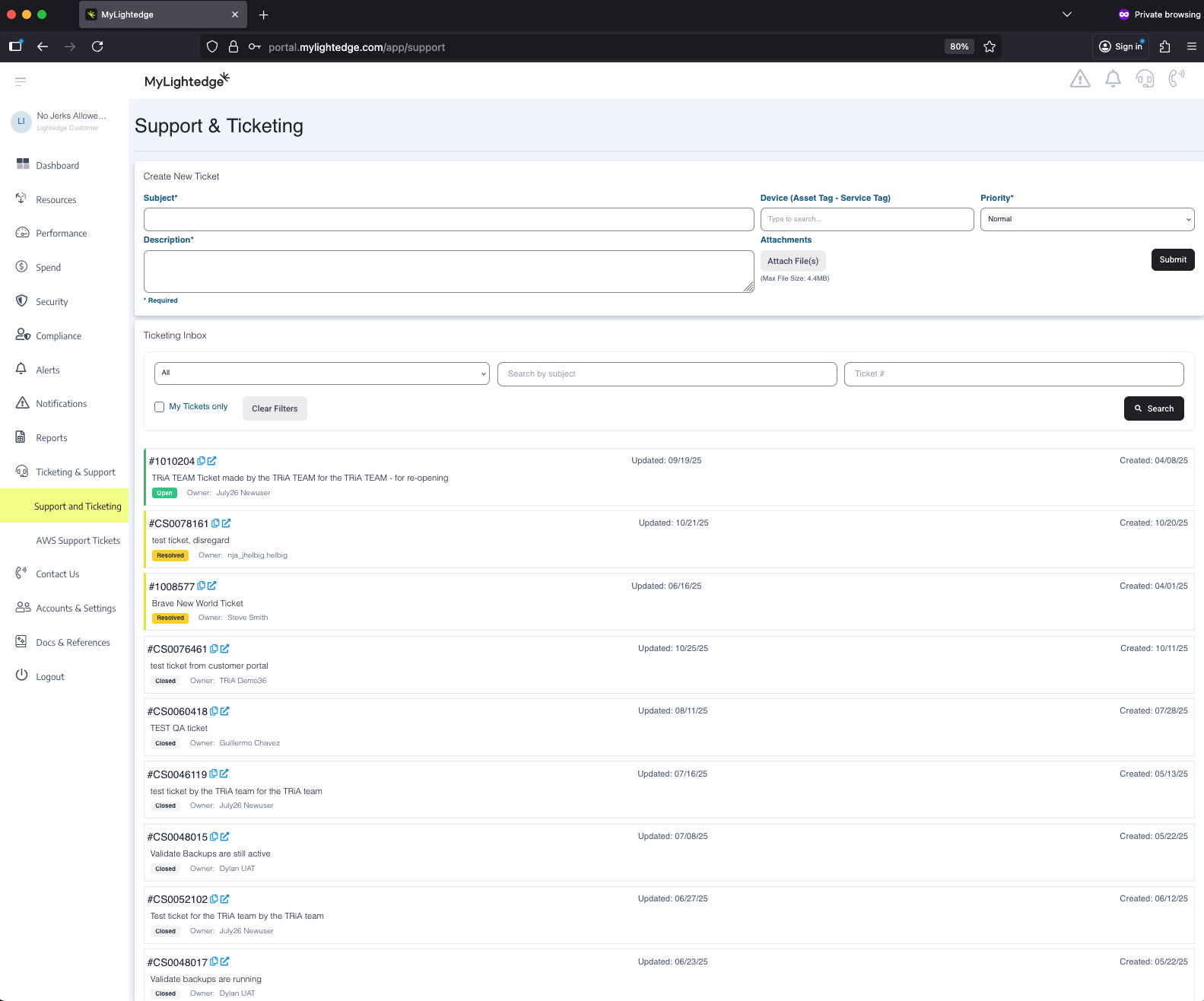
MyLightedge ticketing can be found on your Dashboard or on the dedicated Support & Ticketing page under the Ticketing and Support section in the left sidebar.
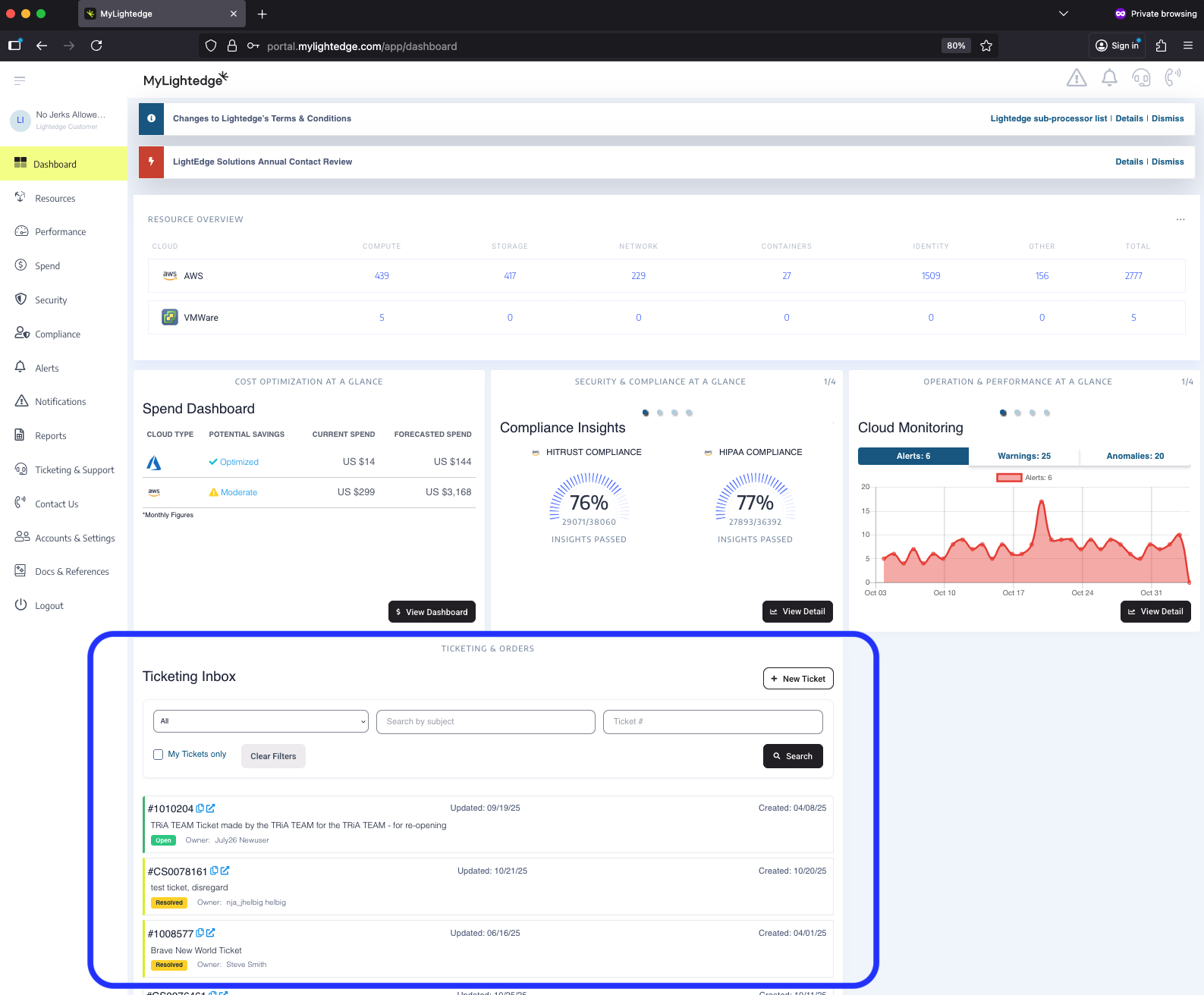
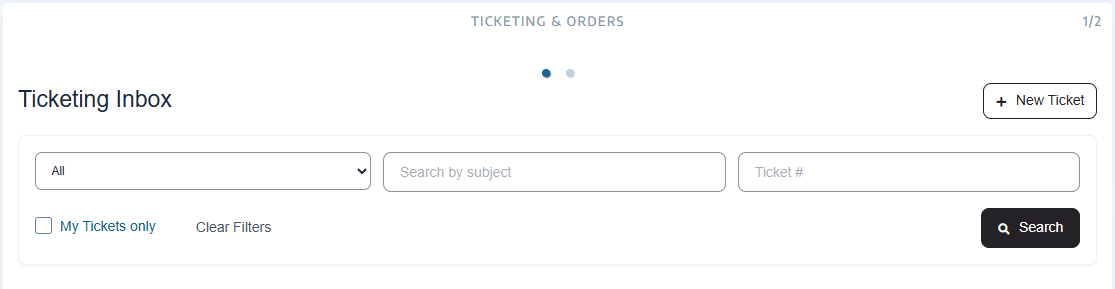
Searching for Tickets
Ticketing permits you to manage, filter by status, search by ticket subject, your tickets, or a specific ticket number, and submit new tickets.
How to Create a New Ticket
You can create a ticket by selecting the “+New Ticket” icon. The following attributes will direct your creation of the Lightedge ticket:

Subject and Description: The Subject is a brief indicator of what the ticket is about. The Description should be a detailed description of the issue you would like to be addressed by our support experts.
Device (Asset Tag - Service Tag): Select the environment, deployment, or device this ticket is affecting.
- Priority: Selecting the appropriate ticket priority ensures our teams prioritize your enquiry to ensure your success is maintained.
Urgent: Urgent tickets are reviewed immediately. Select this priority if your environments, deployments, workloads, applications or services are encountering severe issues that are directly affecting your company or your customers.
High: Select this priority if your issue deserves attention as soon as possible.
Normal: Selecting this priority means we are attending to your High priority issues first before addressing this ticket.
Low: Tickets are reviewed once higher priority issues have been reviewed.
Attachment: Providing a screenshot, documents, metric or file snapshot or dumps as attachments can help our experts investigate the issue faster.
How to View Ticket Details
Once a new ticket is created or an existing ticket is clicked on to be viewed, each ticket’s details can be viewed via the ‘Ticket Details Preview’. This preview allows you to:
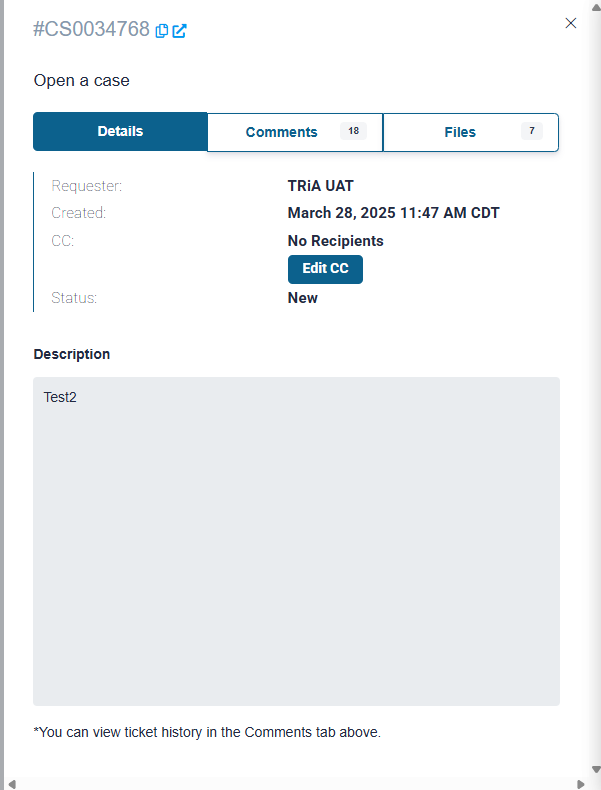
Copy the ticket link to be shared
Open the ticket in a full page view (which allows for easier comments adding and editing)
Edit your ticket’s CCed stakeholders or the Requestor for the ticket (NOTE: You can now carbon copy someone who is not a MyLightedge user by typing in their full email address)
Review or add comments
Review and/or download associated files
Email Notifications from Tickets
When a ticket is created, the requestor will receive an email notification that the ticket was created. When a person is carbon copied on a ticket they will be sent an email notification every time a new comment is added to a ticket.