Legacy Account Migration
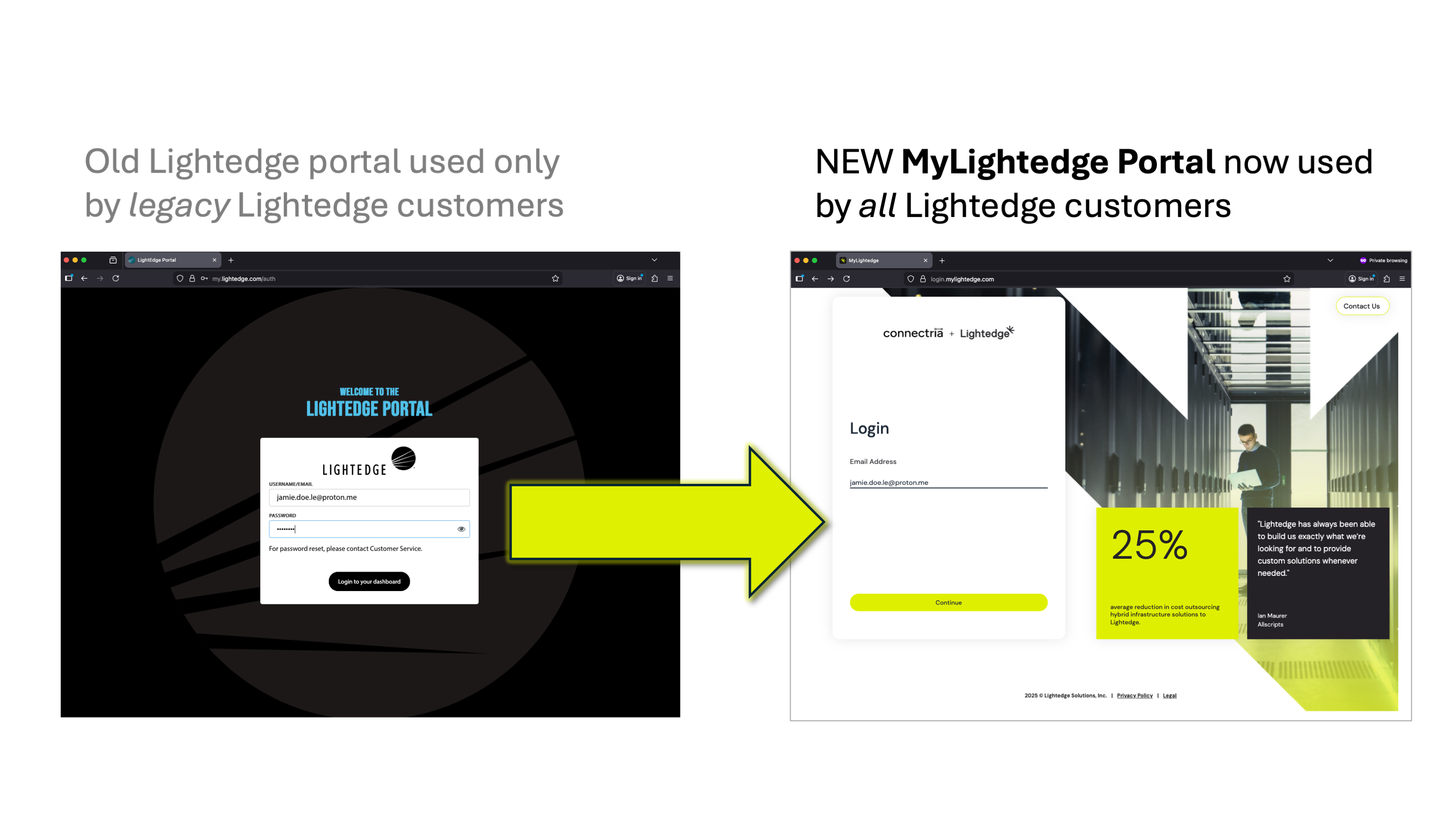
Legacy Lightedge customers logging into the new MyLightedge Portal for the first time will need to follow these steps to migrate their existing portal account.
All users will be migrated to this new MyLightedge Portal but will retain access to the old legacy Lightedge Portal until it is decommissioned in 2026 Q2.
Attention
If you encounter issues with your account migration or MFA setup, please reach out to tickets@lightedge.com or call +1 877-589-3654 for assistance.
Complete One-time Account Migration to MyLightedge
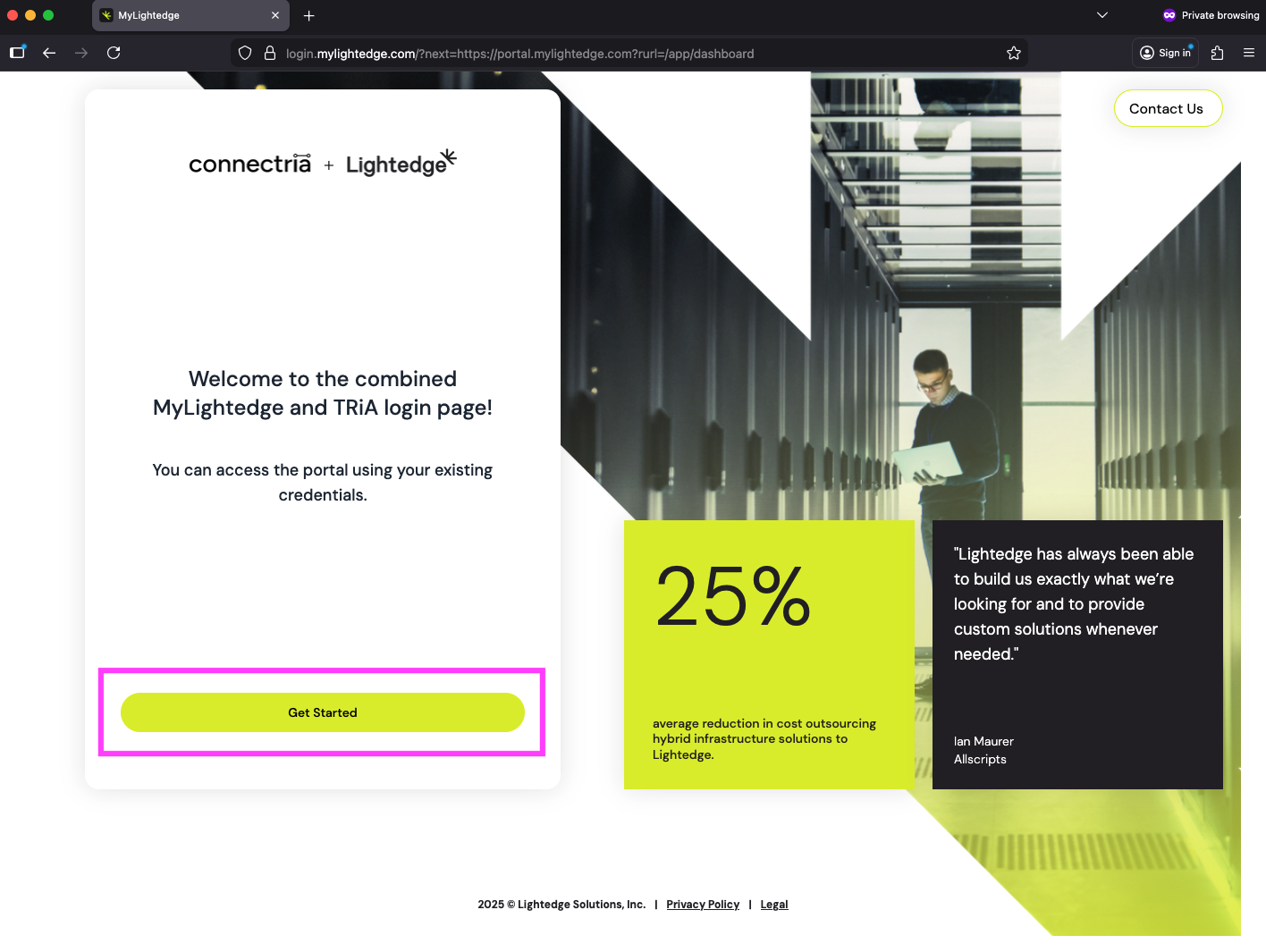
Go to https://portal.mylightedge.com/ to access the new combined login page for MyLightedge. Click the ‘Get Started’ button.
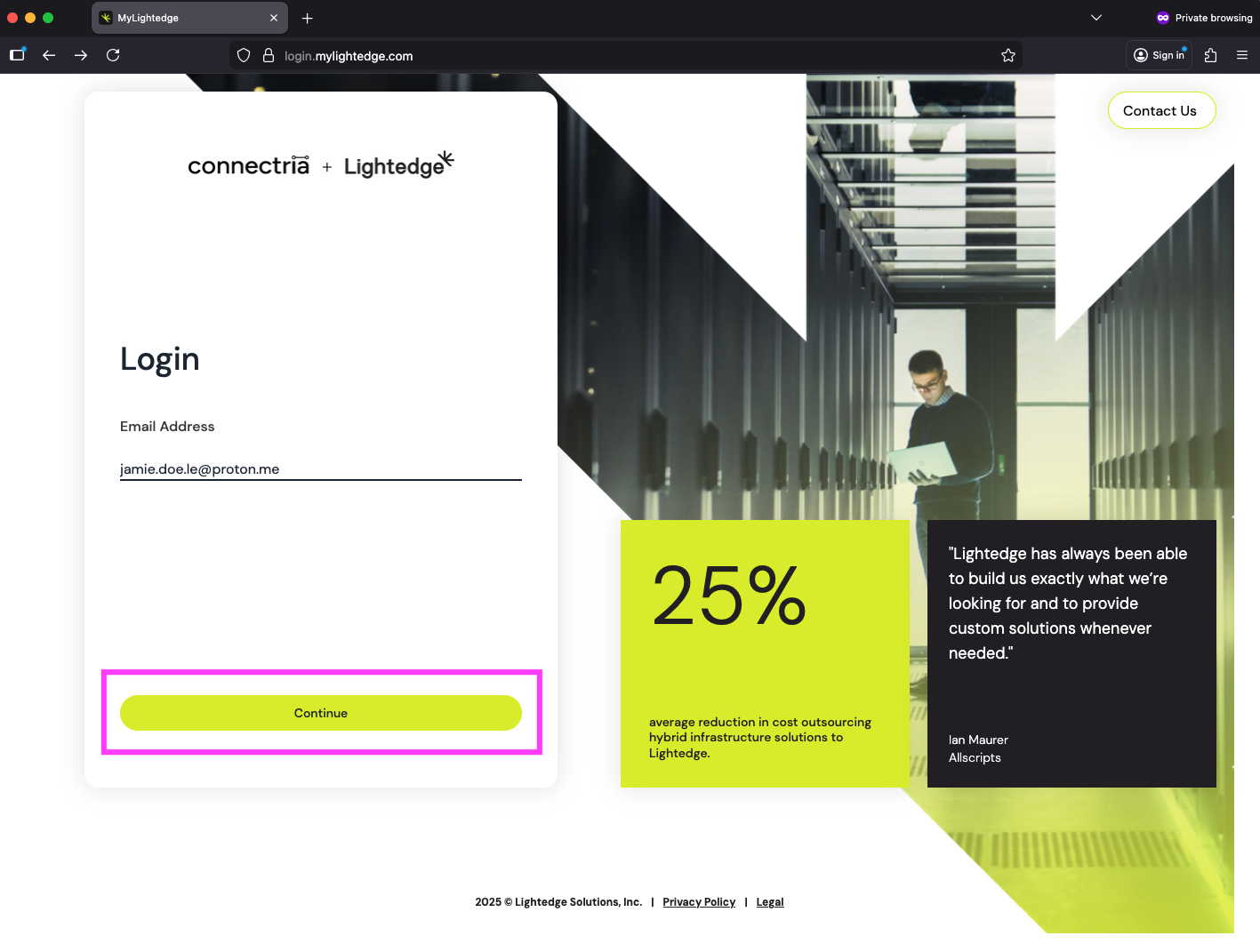
Enter your email address that you previously used to log into the old legacy Lightedge portal. Click the ‘Continue’ button.
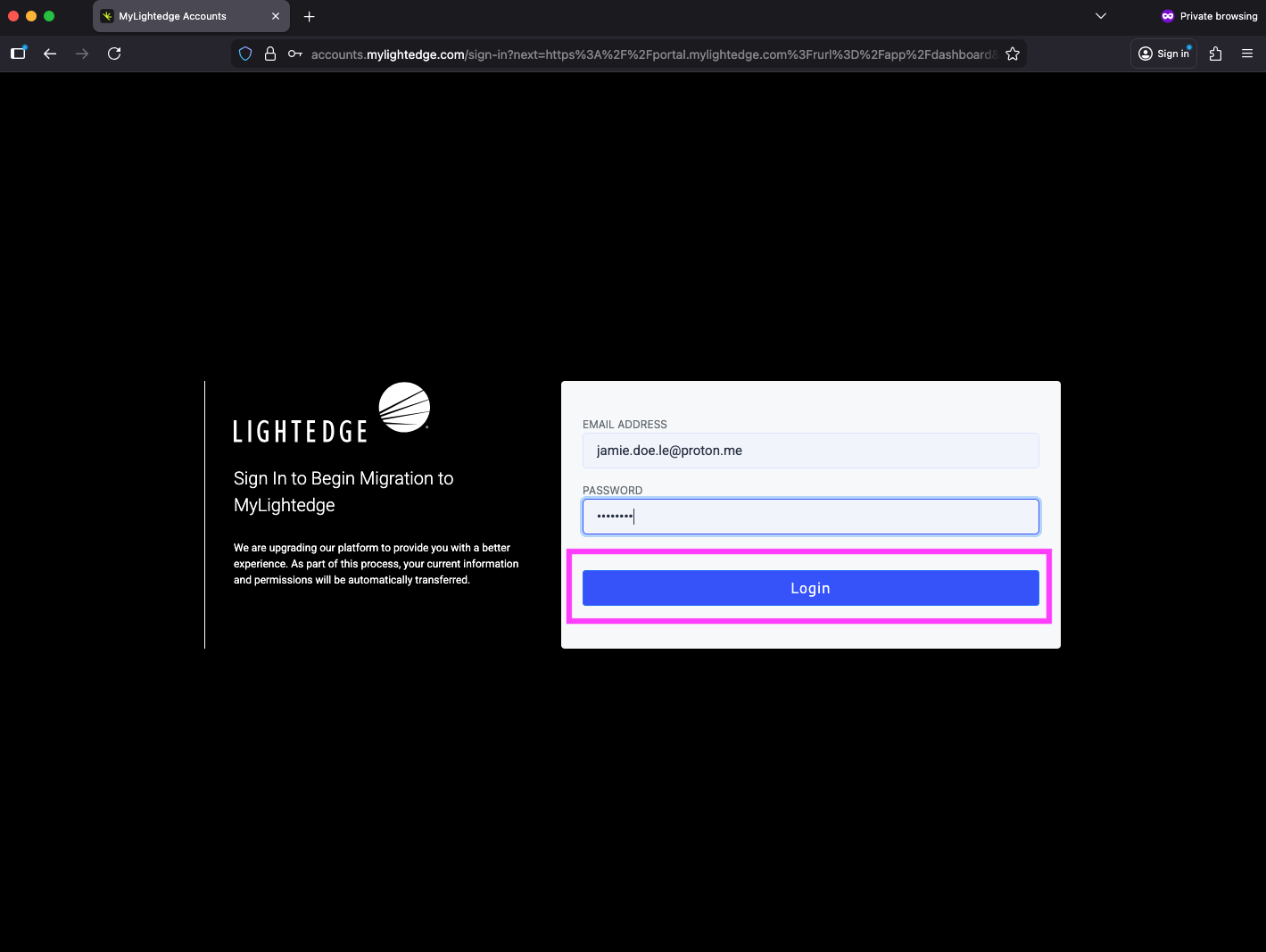
Sign in using your old legacy Lightedge portal account credentials to authenticate that you are an existing user.
Set Up New Password and MFA
Attention
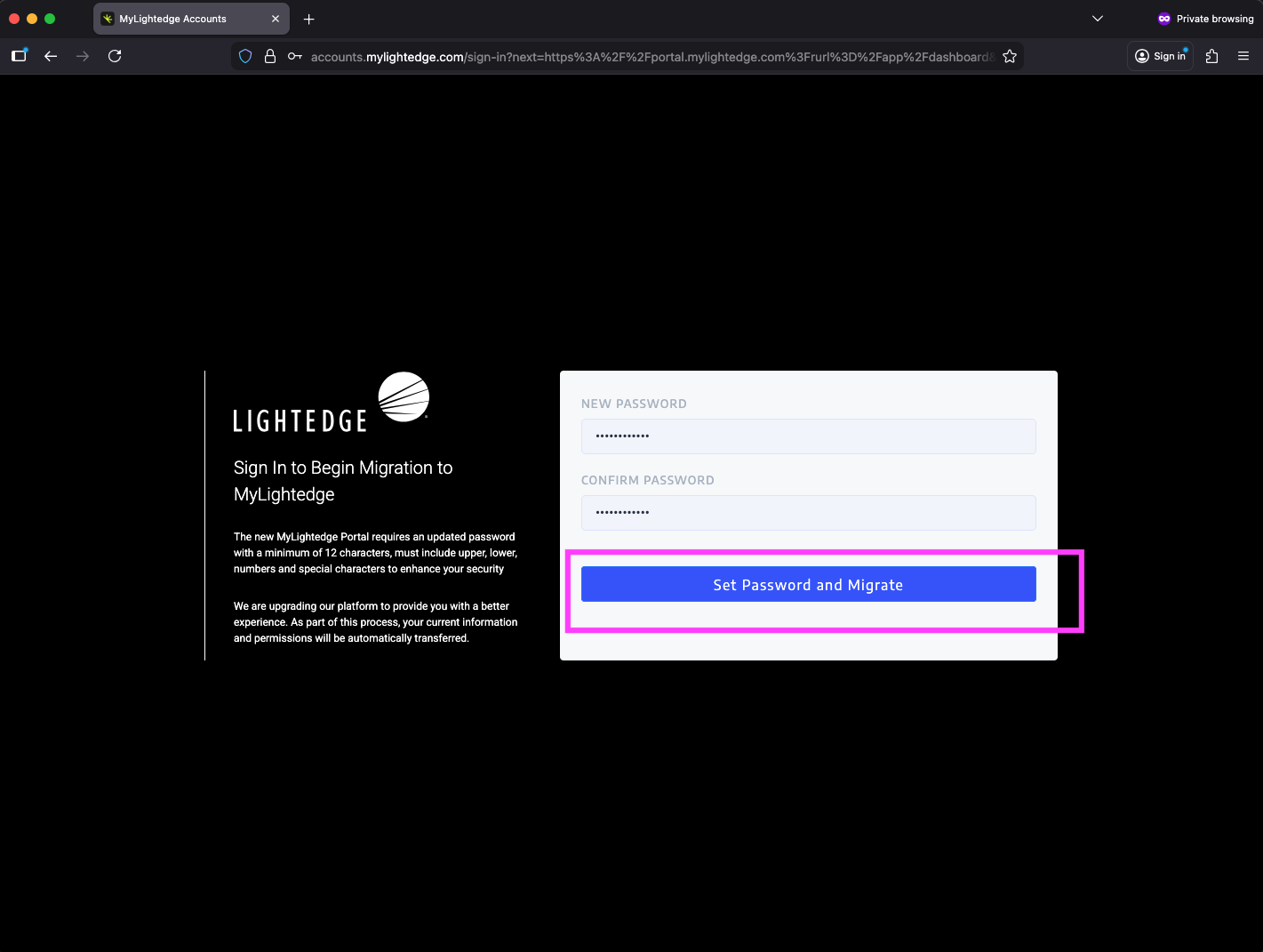
To enhance your security, MyLightedges requires all users to set up a strong password and MFA.
Create a new password that is least 12 characters with 1 lowercase letter, 1 uppercase letter, 1 number, and 1 symbol.
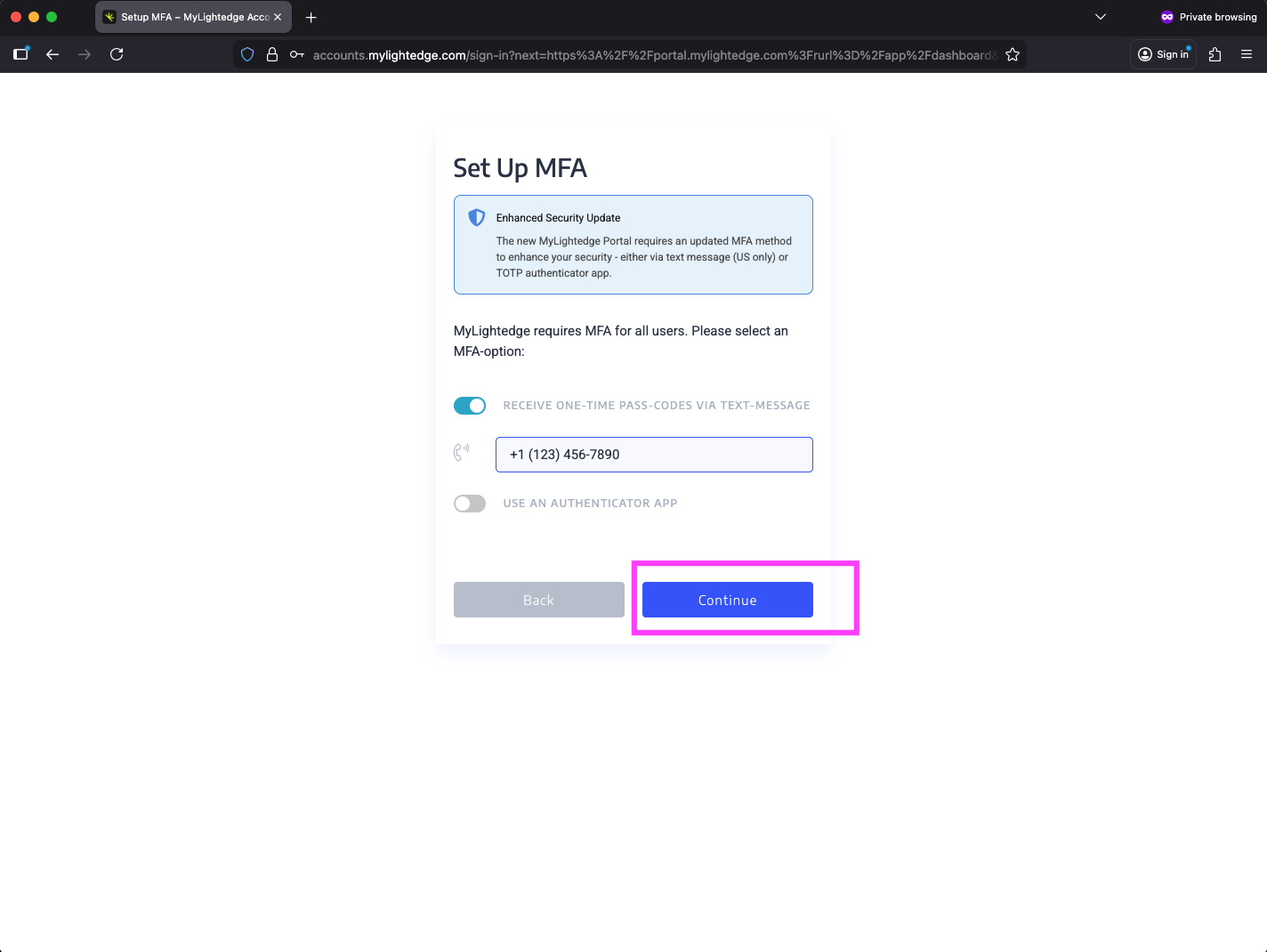
You can set up your MFA by receiving a One-Time Passcode (OTP) on your mobile phone via:
Text message (SMS) if you are located in the United States or
Authentication app regardless of location (e.g. Google Authenticator, Microsoft Authenticator, Duo)
Select which MFA method you would like to use to for your new MyLightedge account. (Authentication by email and push notifications is not supported.)
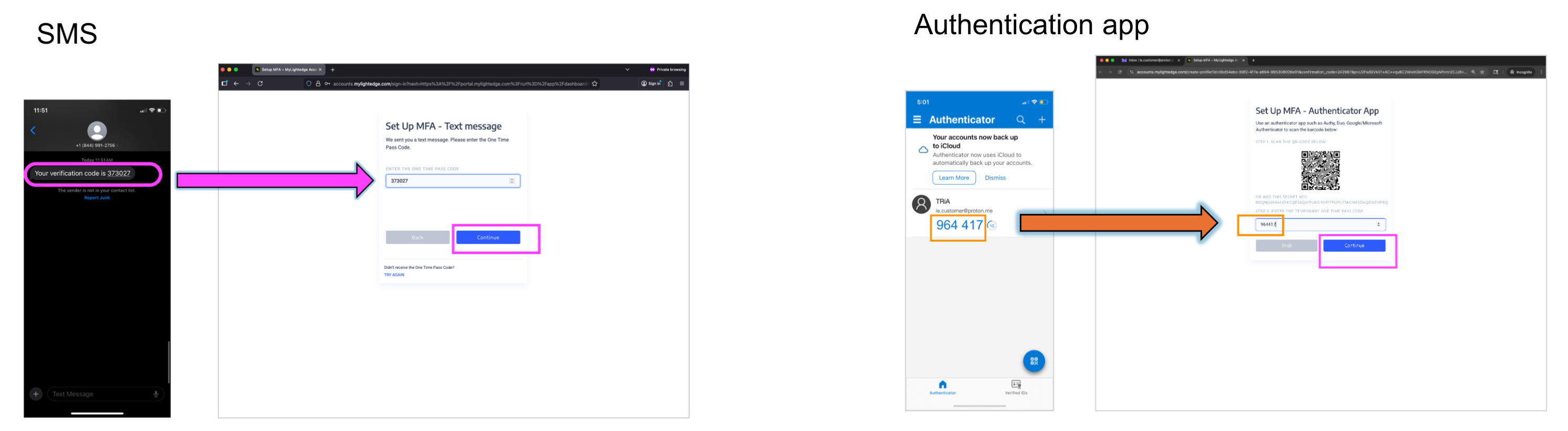
Enter the temporary One-Time Passcode (OTP) from your mobile phone (from SMS or Authentication app) and click the ‘Continue’ button to set up your MFA for your new MyLightedge account.
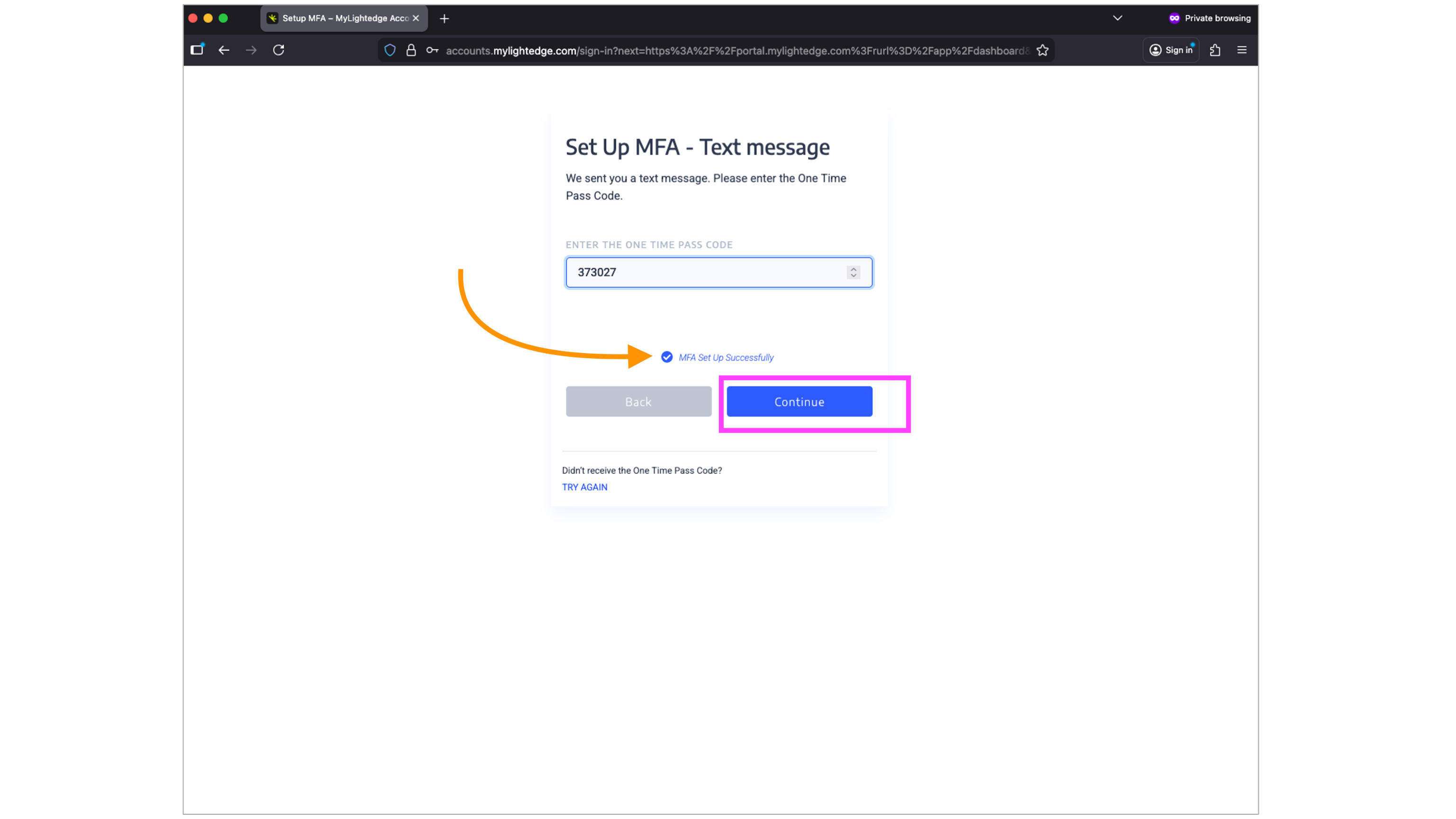
When your MFA setup has been completed, you should see a blue check mark indicating that your MFA setup was successful. From this point onward, a new OTP (One Time Passcode) will be issued to you via your chosen MFA method on any subsequent login to MyLightedge.
Click the ‘Continue’ button a second time to get logged into the new MyLightedge Portal.
Confirming Successful Migration
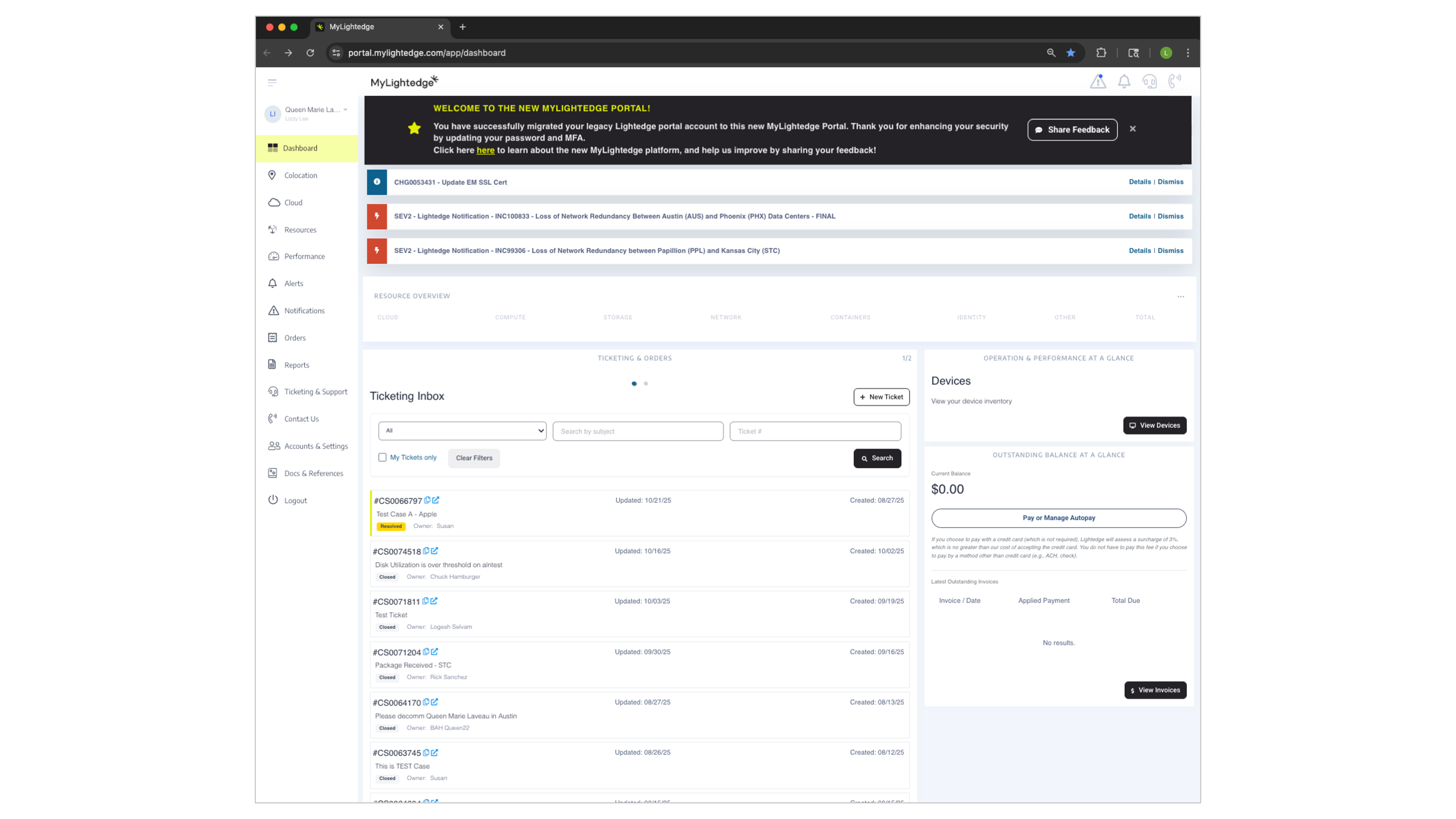
Upon logging into MyLightedge for the first time, you will see your Dashboard.
You will also see a black banner at the top of your screen confirming that you have successfully migrated your legacy Lightedge portal account to the new MyLightedge Portal.
Click on “Share Feedback” to send us your ideas and suggestions!
Hint
Your Dashboard view may be different than what is displayed above, as MyLightedge feature availability is dependent on a customer’s specific services, products, and user permissions.