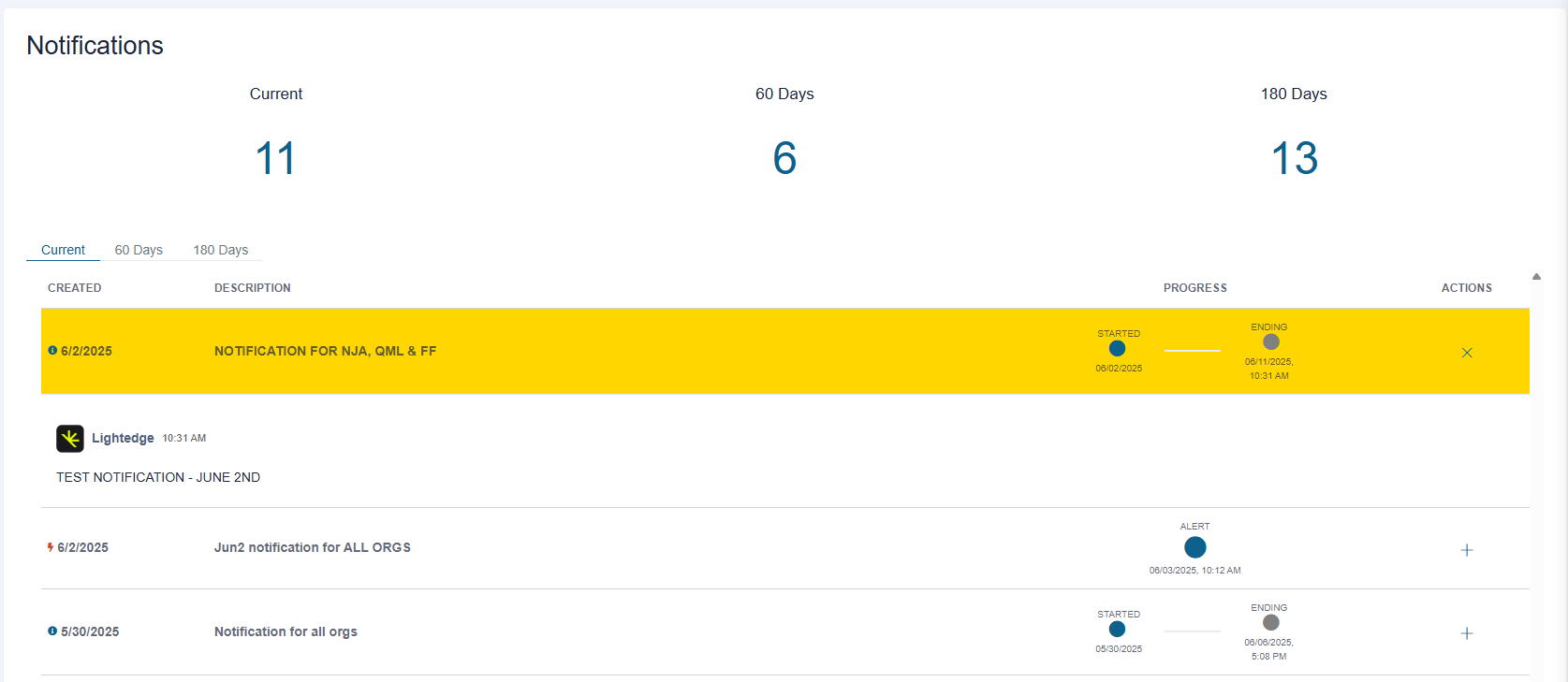
Notifications
Active notifications sent to your organization appear as banners at the top of the dashboard. The five most recent notifications will be displayed.
There are two types of notifications: - Informational (blue icon) - and Outage (red icon).

Dismissing a Notification
Notifications can be dismissed, meaning they will no longer appear in the notification banner on the dashboard. However, they will still be visible on the Notifications page.
Dismissal is user-specific — other users within the same organization will continue to see the notification in their banners unless they dismiss it individually.
If there are more than five notifications in total, dismissing one will make room for the next available notification to appear in the banner.
Notification Details
You can access the details of a notification in one of three ways:
By clicking the Details link on the notification banner.
By clicking the notification icon in the top menu bar to open the list, then selecting the notification you want to view.
By navigating to Notifications via the left-hand menu.
On the Notification Details page, you can view all information related to a specific notification by clicking the Actions + button. You will also find a list of all notifications, with filters available for:
Current: Notifications created within last 15 days.
60 Days: Notifications created between last 16 and 60 days.
180 Days: Notifications created between last 61 and 180 days.
Notifications older than 181 days will be removed from the list.