Managing Your Profile
Every MyLightedge portal user has the permissions to reset their own password and reset their MFA (as long as they have the ability to login). Within your company, Organization Admins also have the ability to reset another user’s password and MFA. The Lightedge support team can also assist in resetting your MFA if necessary - contact tickets@lightedge.com or call +1 877-589-3654.
How to Reset your Password
There are three different ways to either reset your password or have your Admin reset your password within the MyLightedge Portal.
If you are locked out and need to reset your own password, you can do on that on your own from the login page of the MyLightedge Portal.
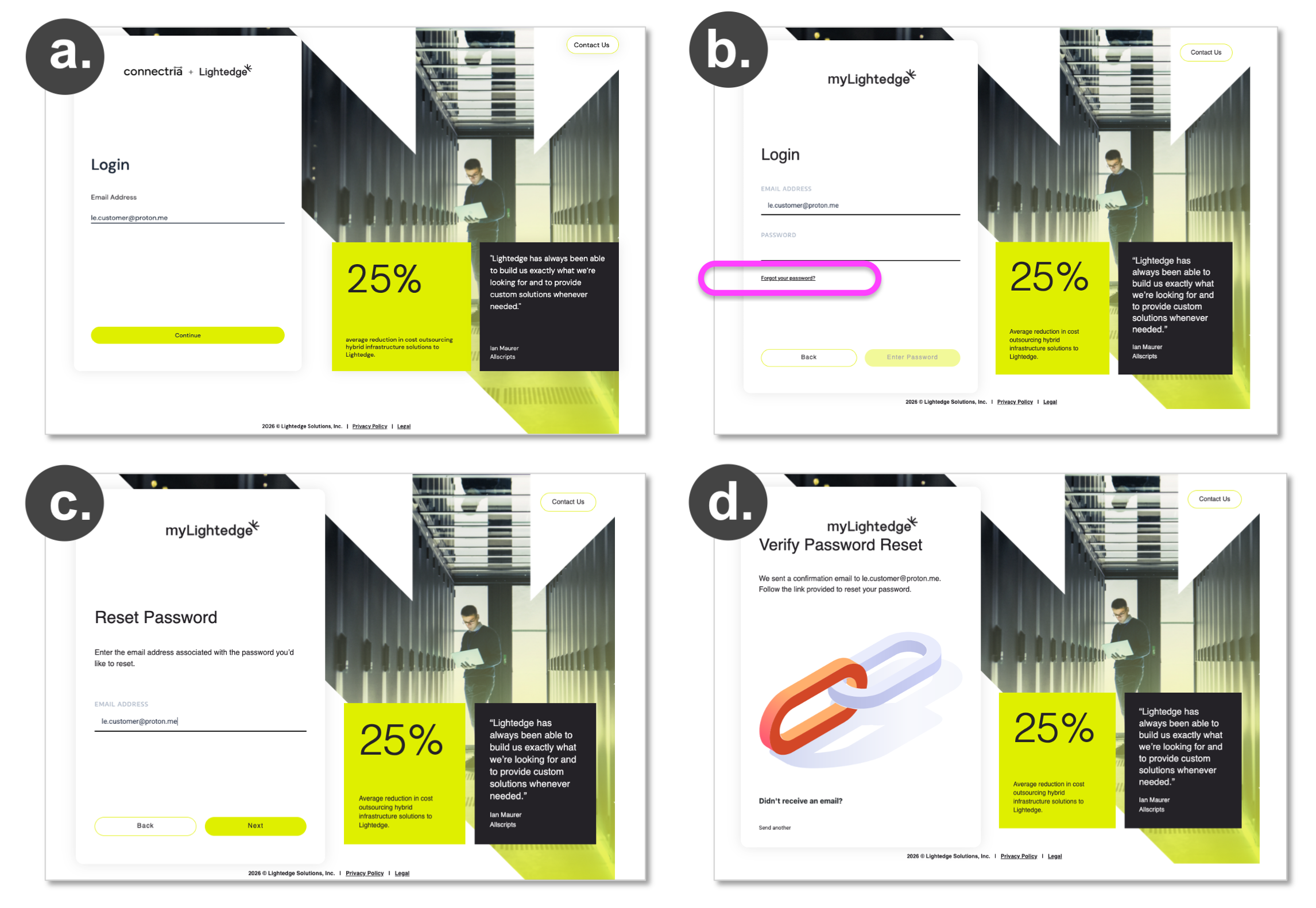
Go to https://portal.mylightedge.com/ enter your email address for your MyLightedge Portal account and click ‘Continue.’
On the Login page, click ‘Forgot Your Password’ and follow the prompts.
You will be asked to confirm the email address of your MyLightedge account
In the email you recieve, click on ‘RESET PASSWORD’ and a new tab will open where you can enter a new password.
If you are already signed into the Mylightedge portal and would like to change your password, you can do that by navigating to the “Accounts & Settings” menu option and selecting “Profile”. From there you can either hit the “Change Password” button in the bottom left hand corner or open the left hand menu once more and select Accounts then Change Password.
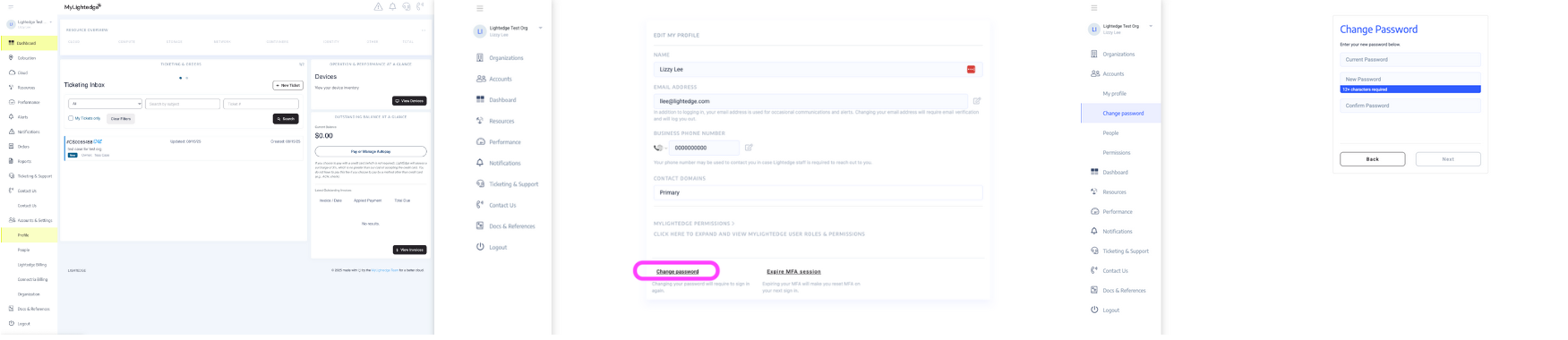
Your company’s Organization Admin can also change your password by clicking on your profile and hitting the change password button in the Accounts - People section of MyLightedge.
Note
Your MyLightedge password must be at least 12 characters with 1 lowercase letter, 1 uppercase letter, 1 number, and 1 symbol
How to Reset your MFA
There are three different ways to either reset your MFA or have your Admin reset your MFA within the MyLightedge Portal. Once your MFA has been reset you will attempt to login to the MyLightedge Portal like normal but after you enter your password you will be prompted to setup your MFA again.
If you are locked out because of your MFA then you will need to contact either your Admin or Lightedge Support. Your Admin can reset your MFA by clicking on your profile and hitting the “Expire MFA session” button.
If you are still able to login to the MyLightedge Portal and need to reset your own MFA you can do that by navigating to the “Accounts & Settings” menu option and select “Profile”. From here you can hit the “Expire MFA session” button.
Note
MFA options are limited to SMS text (US numbers only) and authentication apps (e.g. Google Authenticator, Authy, Microsoft, DUO). Users must type in the One-Time Passcode (OTP) from the SMS message or from their authentication app. Authentication by push notification or email is not available.